How to Find a Book
You can search for books and eBooks directly from the library catalog and/or from Library Search.
Searching from the "Search Anything" box
- Go to the library’s homepage.
- Click the yellow search button to access all of the Library Search features (it’s okay that the search box is empty).

- Enter your search terms into the ‘Search anything’ box. The search box defaults to searching everything. If you would like to search a specific part of the collection, use the drop down menu to select where you would like to search. For example you can select ‘App State Only’ to exclude the other UNC System schools.
- Click search.
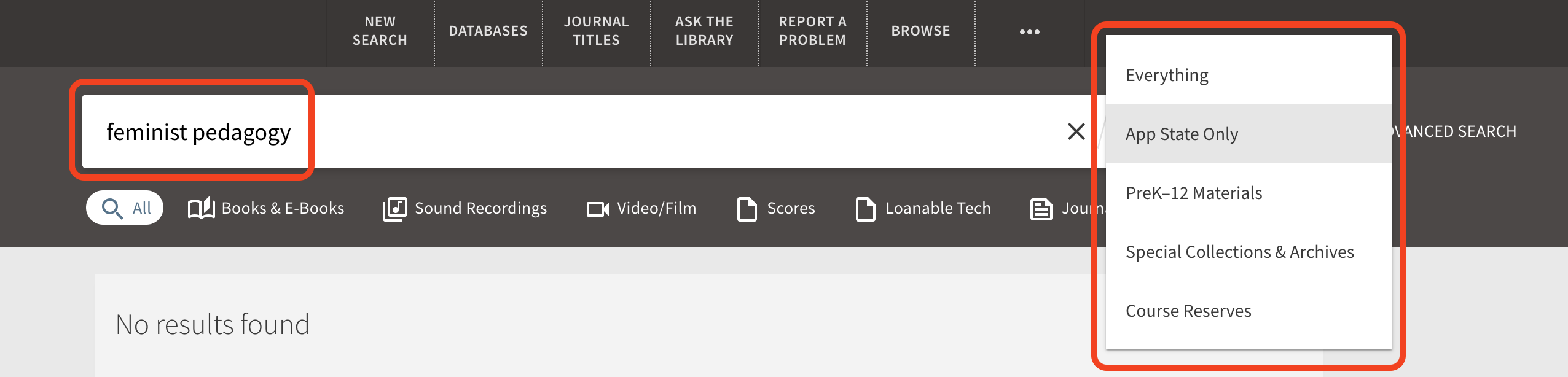
- Click on Books & eBooks.

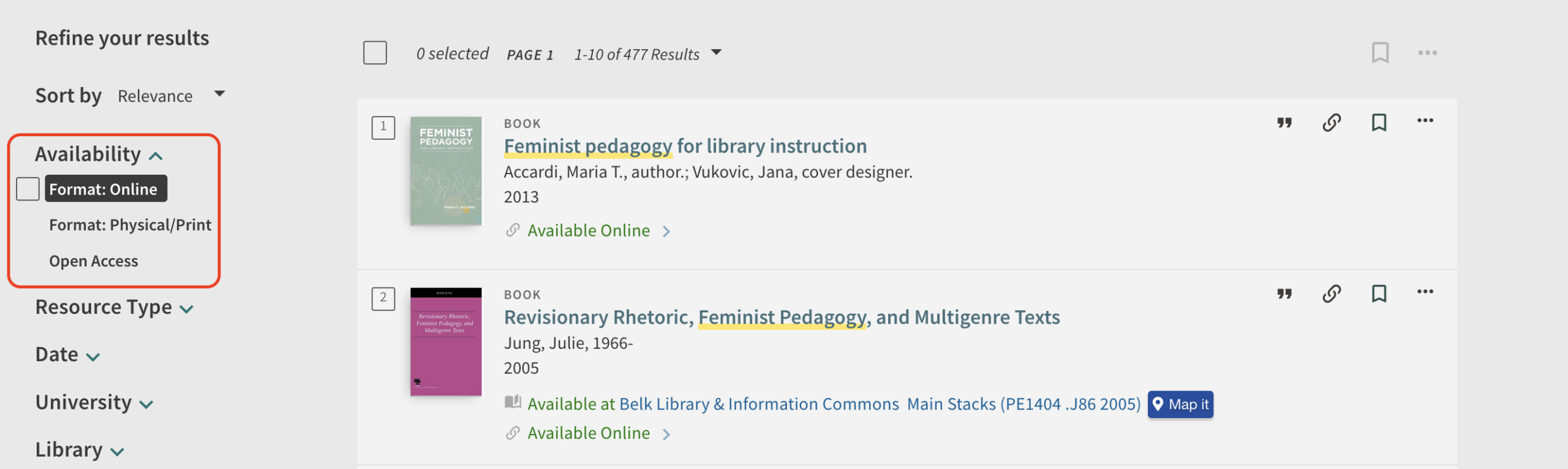
- The search results will default to searching ebooks, print, and open access. If you have a preferred format, you can select or exclude a specific format on the left hand side of the page, under availability.
- Please note that there are two ways to apply filters, by clicking on the button/toggle OR by checking the box on the left and applying the filter.
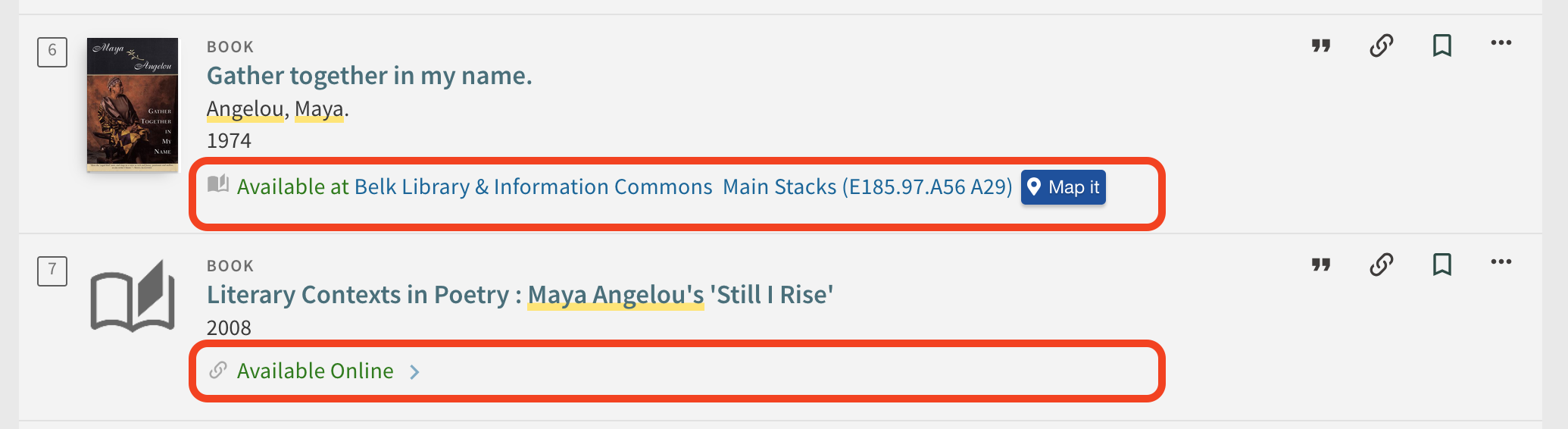
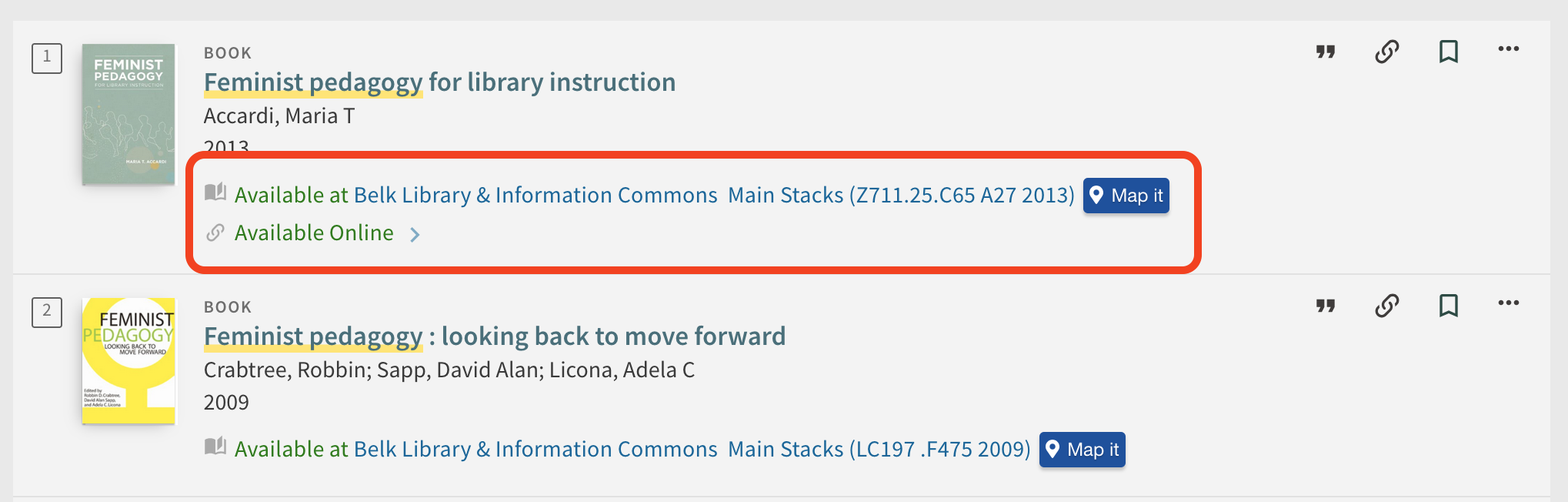
- If the book is in print format, you’ll see the location, call number, and Map it feature listed.
- If the book is available online, click on the Available Online link. You’ll see options for how to access the online book.
Searching from Advanced Search
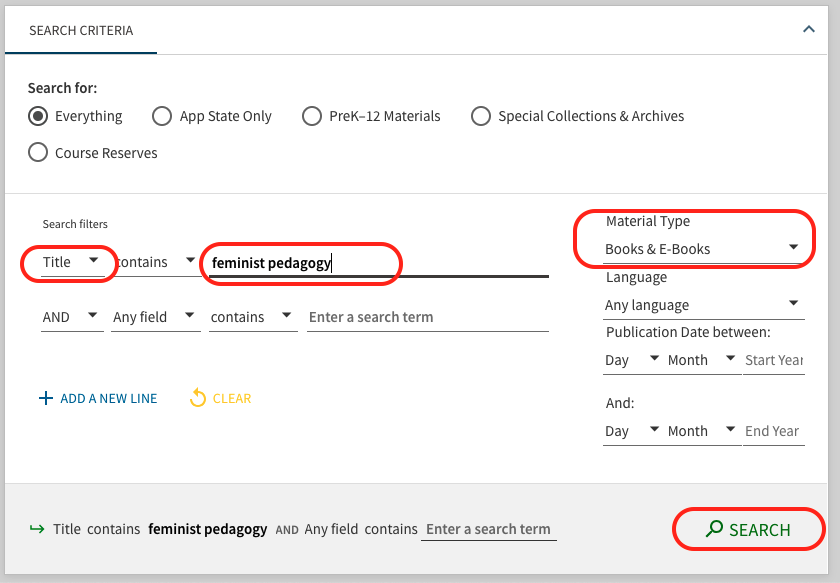
- From the library’s homepage, click on the Advanced Search link.
- Change Material Type to Books & E-Books.
- If you know specific information about the book you’re looking for, such as Title or Author, you can change the search filters, and search.
Searching Directly From the Library Catalog
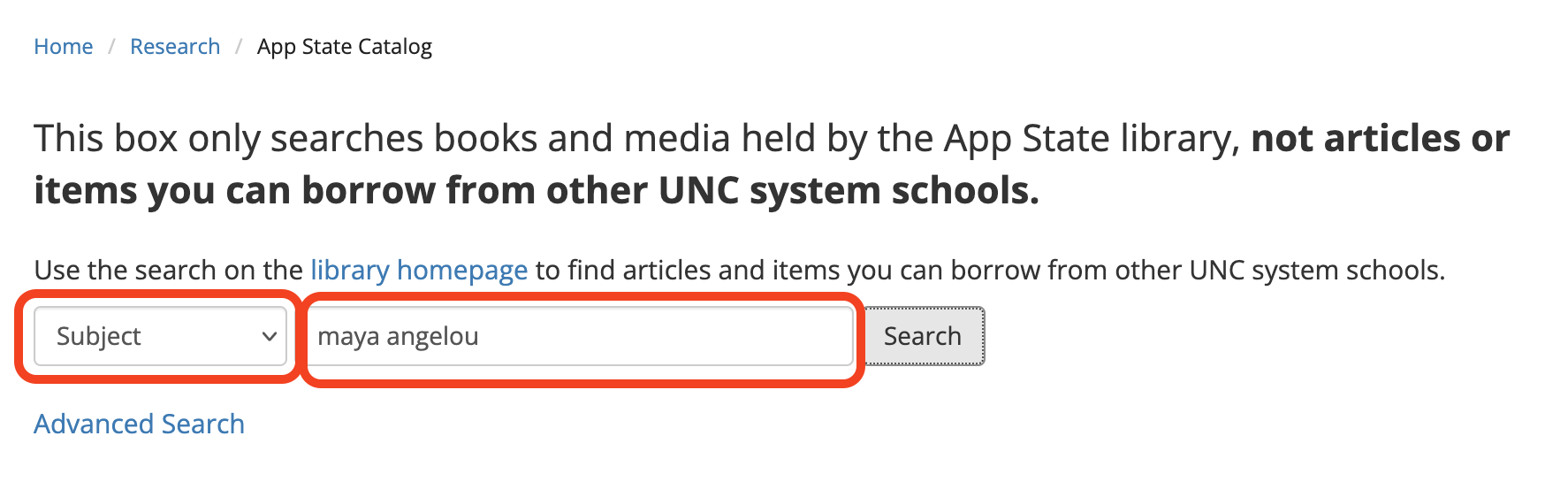
- From the library’s homepage, click on ‘Books & More’.
- You can use the drop down to search for App State books and media by keyword, title, author, and more.
- Enter in your search term(s)
- Click search
- If the book is in print format, you’ll see the location and call number listed.
- If the book is available online, click on the Available Online link. You’ll see options for how to access the online book.
- If the book is in print format, you’ll see the location and call number listed.
- If the book is available online, click on the Available Online link. You’ll see options for how to access the online book.