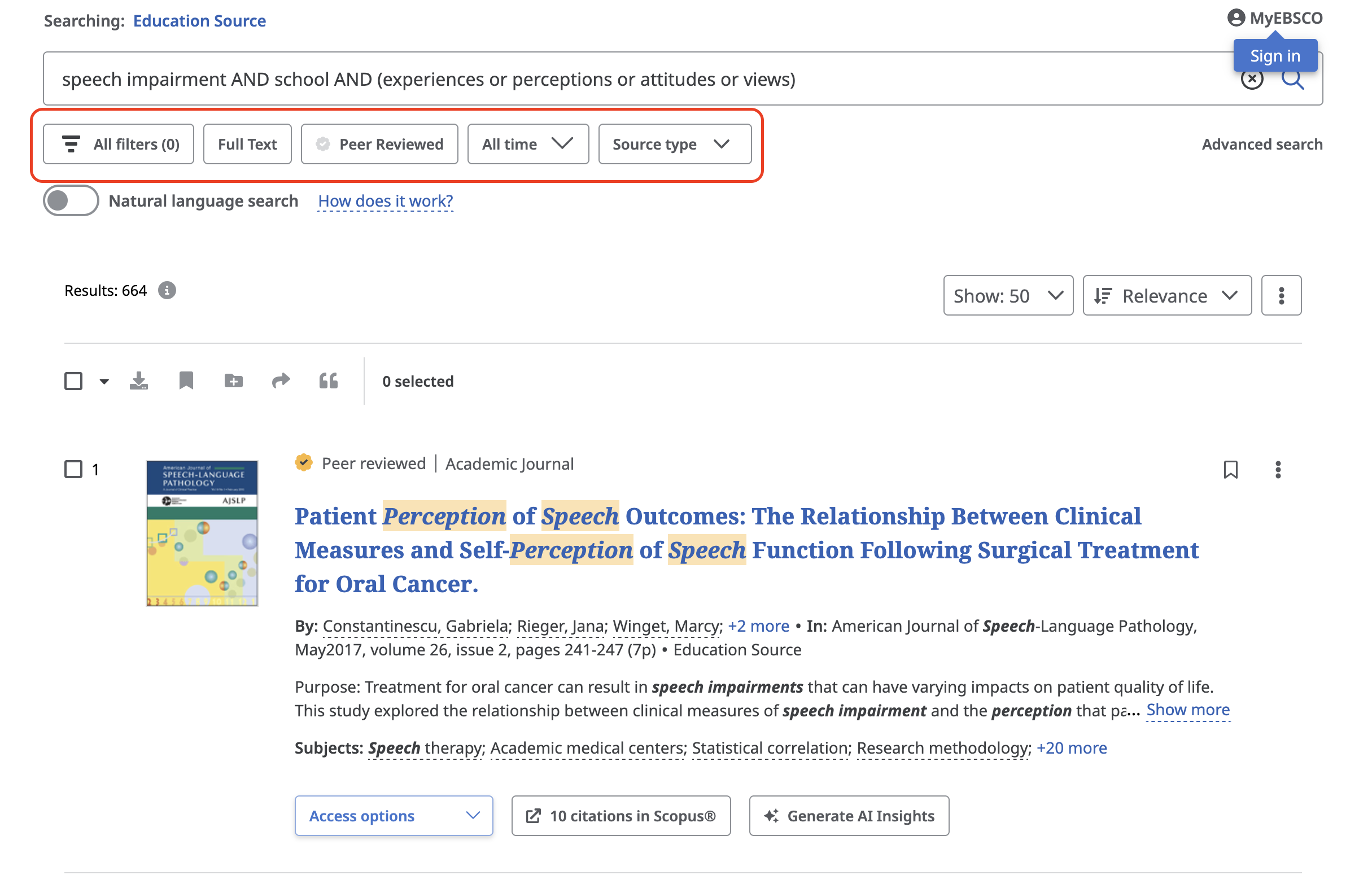
Education Source
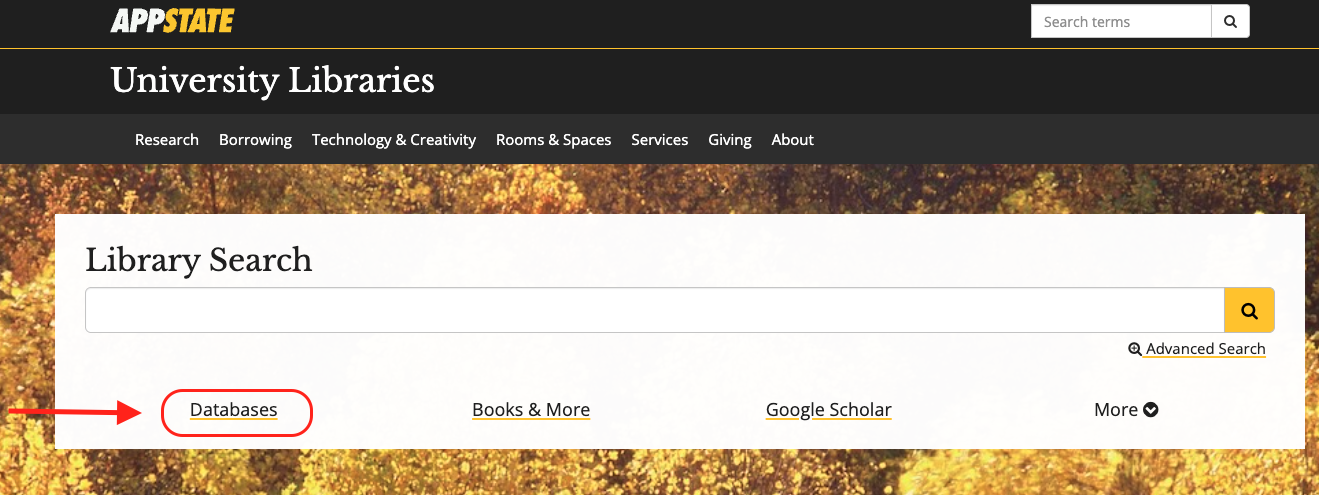
Steps to use Education Source beginning from the University Libraries homepage.
How to Access Education Source
- From the University Libraries homepage, click on Databases
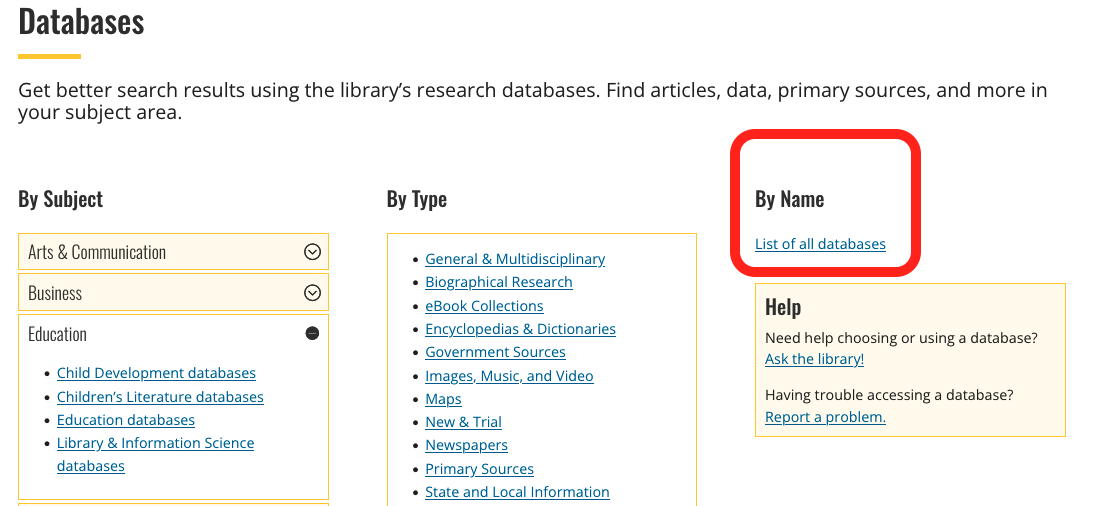
- Click on ‘By Name’ to search by name
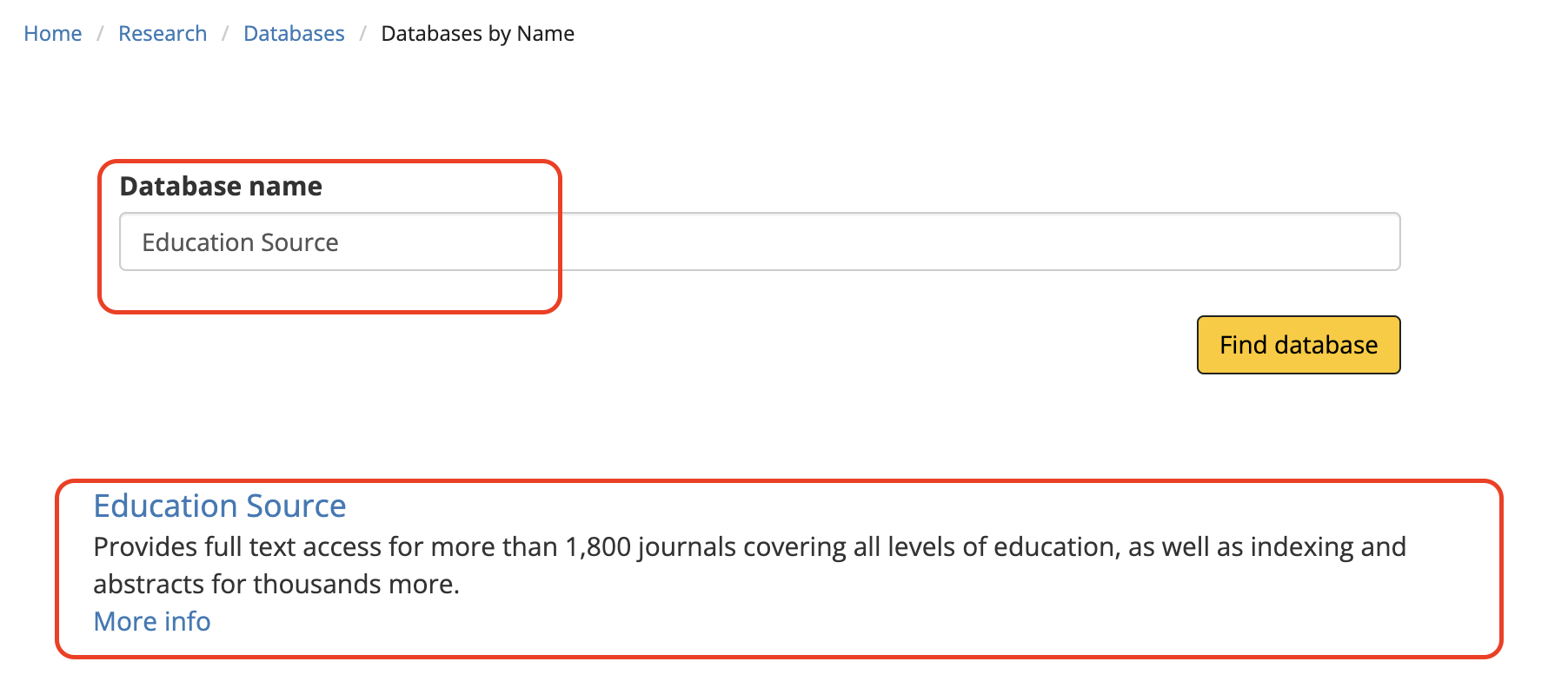
- Enter “Education Source” in the database search box, and click the ‘Find databases’ button
- Click Education Source
- You might need to login with your App State credentials
Searching within Education Source
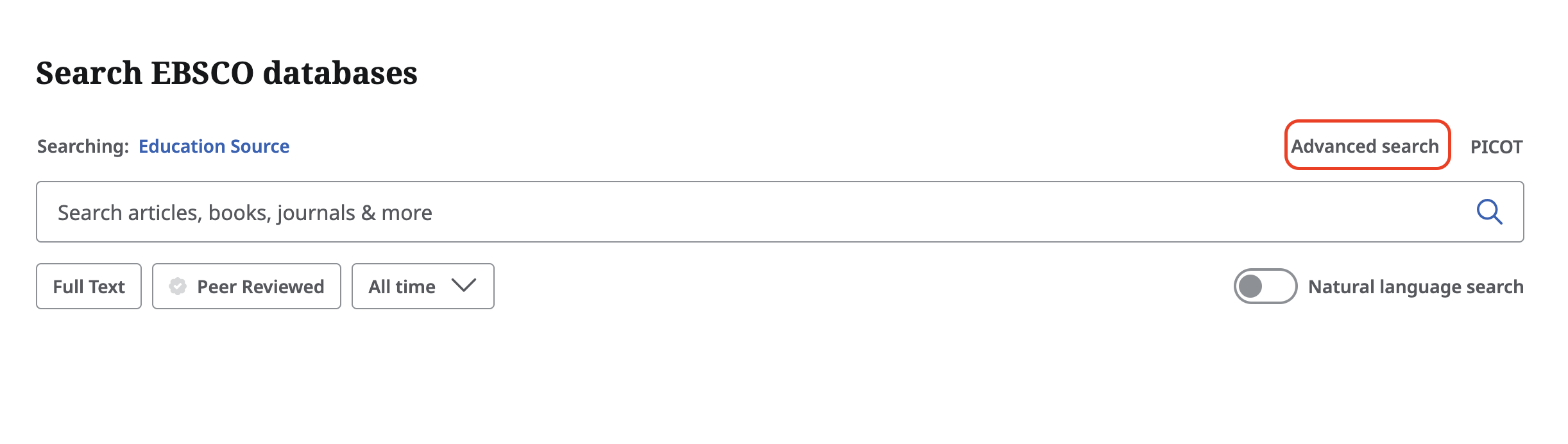
Click on the Advanced Search option to display more search options.
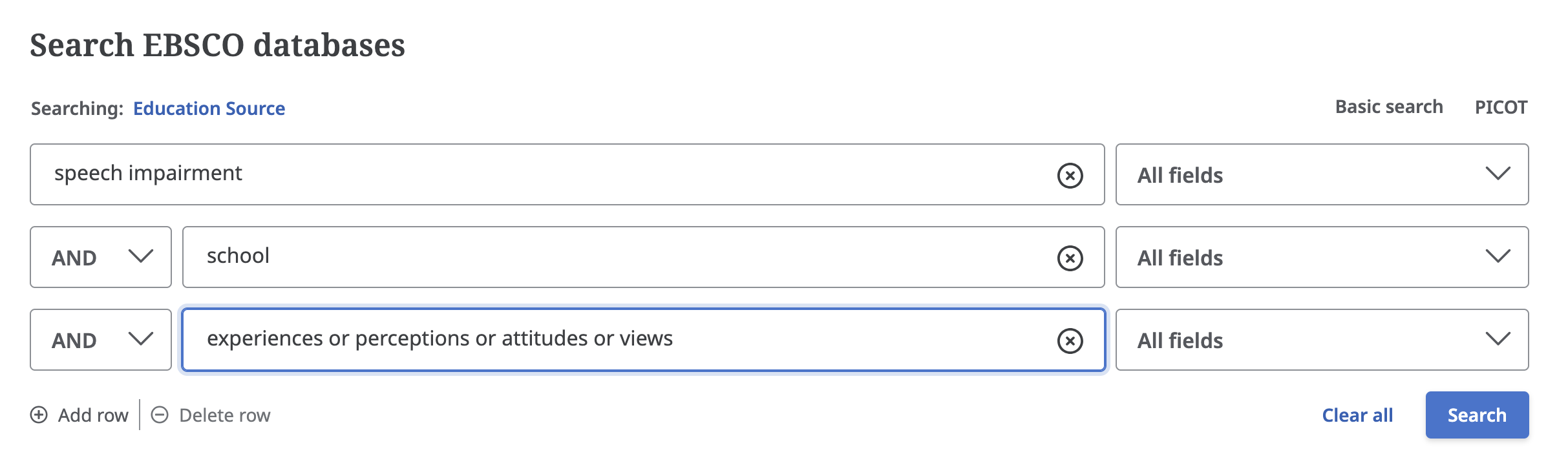
Search Example: If you want to search for scholarly articles on the experiences of youth in schools with a speech impairment, you could:
- Start by entering in keywords: speech impairment, school, experience
- Depending on your keywords, you will likely have options to select synonyms to include with your search
- As you develop your search, you can adjust your keywords
- Click Search
Below the search you will now see several options for refining your search, including:
- Searching within Full Text
- Peer Reviewed
- Data of publication
- Source type