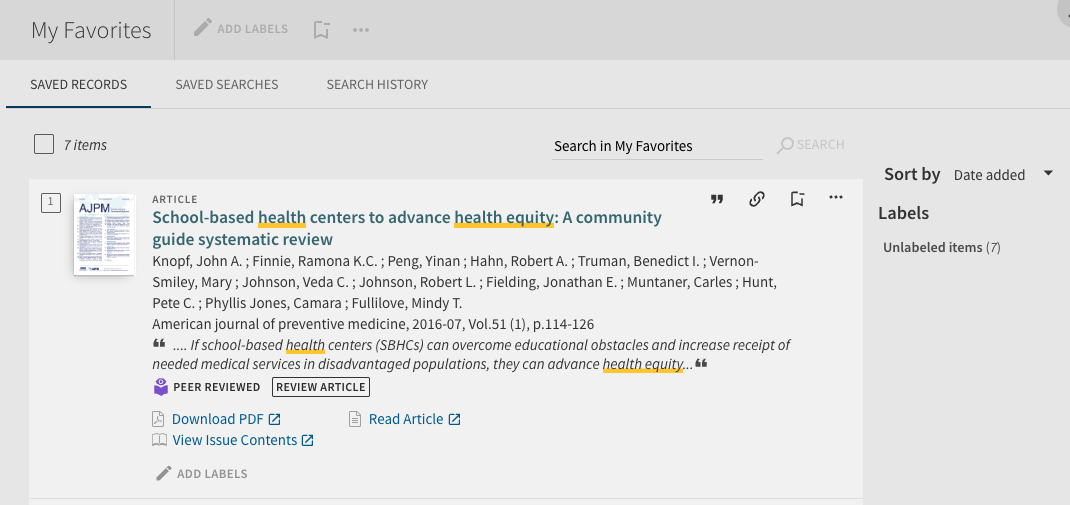
How to Save Search Results
When performing searches using Library Search, you have the option to save individual sources to your favorites so that you can go back to them later.
Note: To save your sources for future sessions, be sure that you are signed in each time you search.
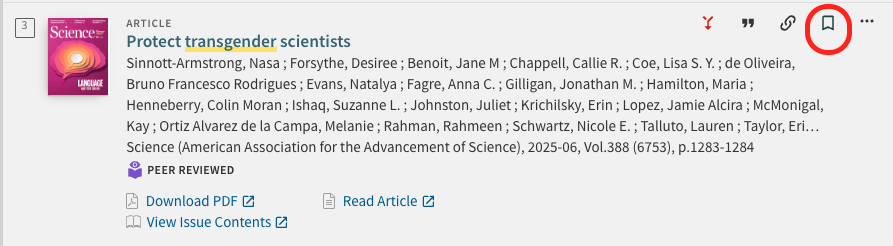
Save Search Results
- Find the bookmark icon next to the item you’d like to keep. Click it.
- The item will be added to your favorites list.
Find Your Saved Favorites
- To see your favorites list, click the bookmark icon in the top right corner of the page.
- You’ll notice that you can organize your list or remove items that you no longer need (click the bookmark icon again).