How to Search for Articles
Library Search allows you to search the main search box for articles or perform an advanced search for articles.
Searching From the "Search anything" Box
- Go to the library’s homepage.
- Click the yellow search button to access all of the Library Search features (it’s okay that the search box is empty).
- Click on Articles.
- Enter your search terms into the search anything box.
- Click search.


Searching from Advanced Search
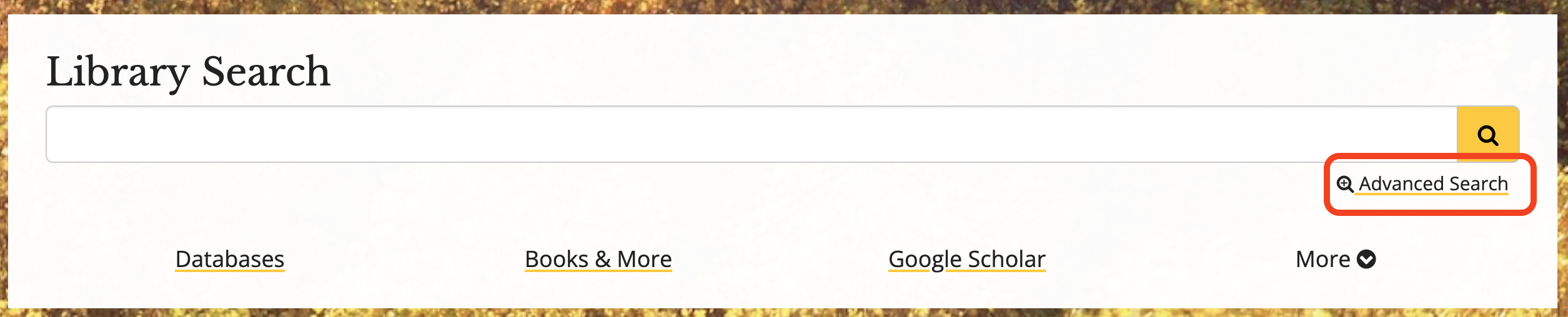
- From the library’s homepage, click on the Advanced Search link.
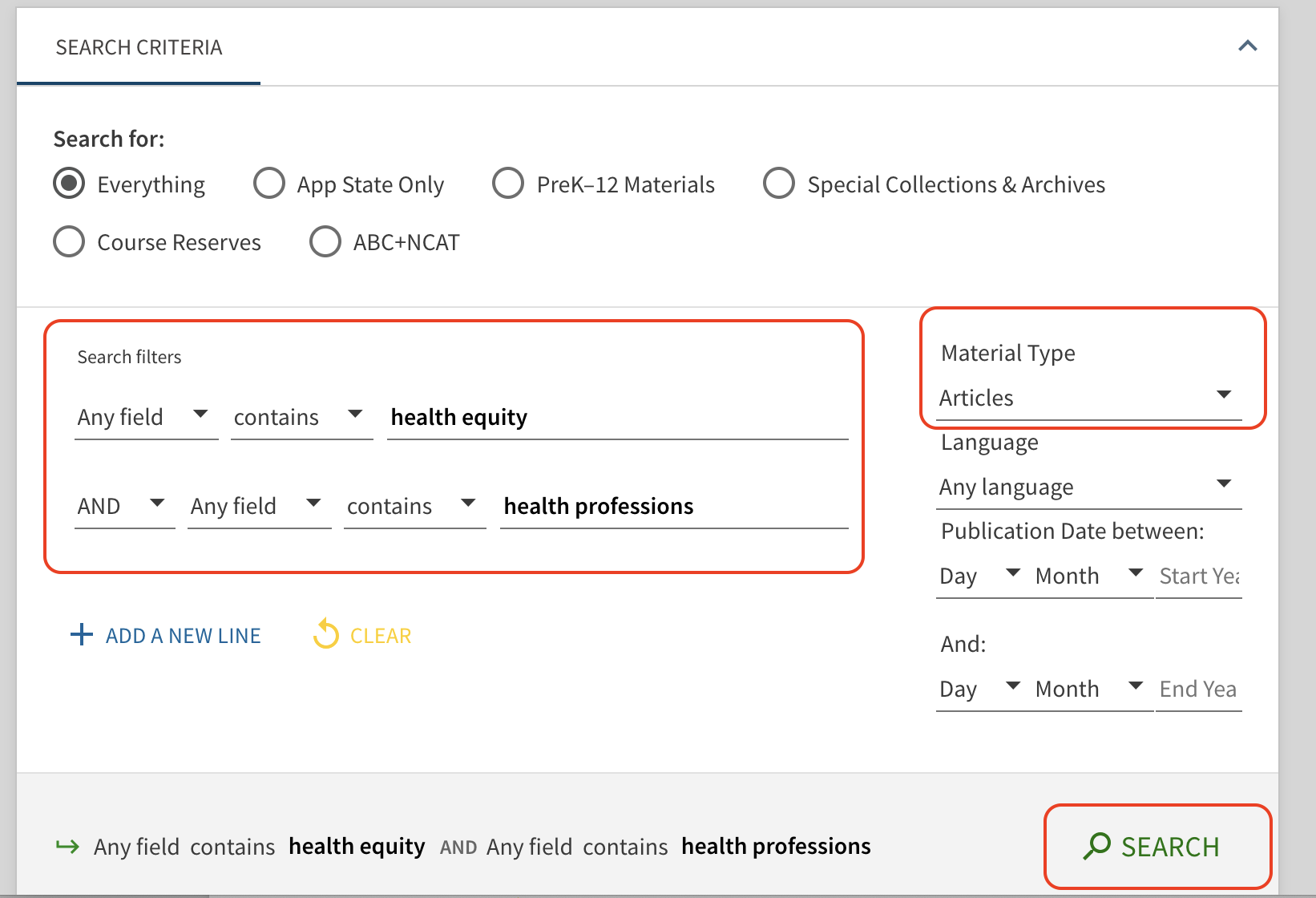
- Change Material Type to Articles.
- Enter your search terms and click search.
Accessing Articles
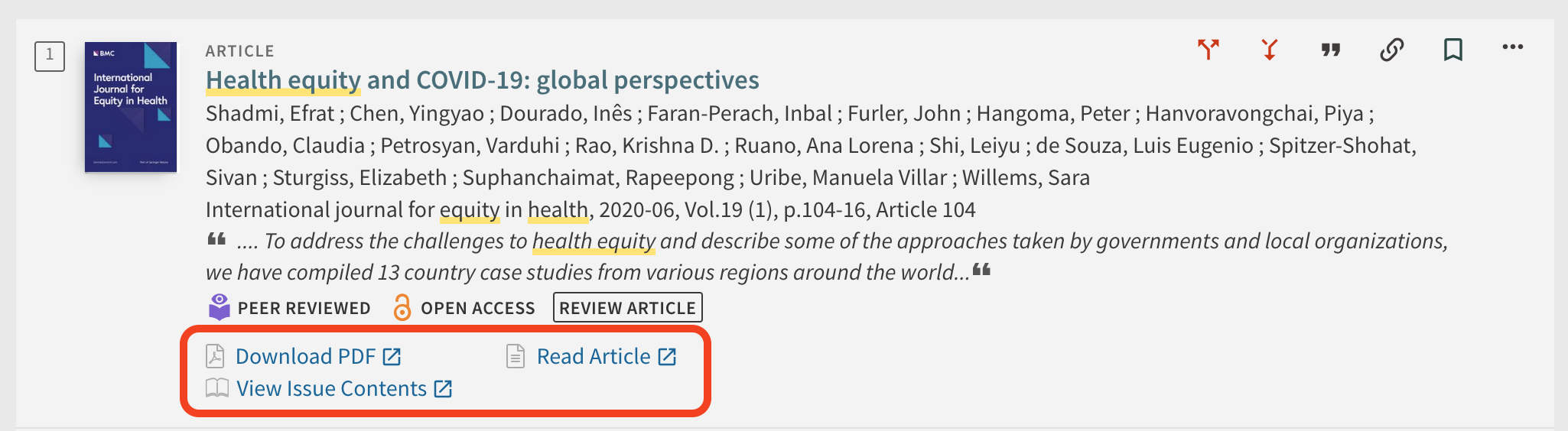
- Each article in the search results will display the access options below the article summary. This will likely include at least one of the following:
- Download PDF
- Read Article
- View Issue Contents
Download PDF and Read Article are the quickest ways to access an article.
Tip: Availability
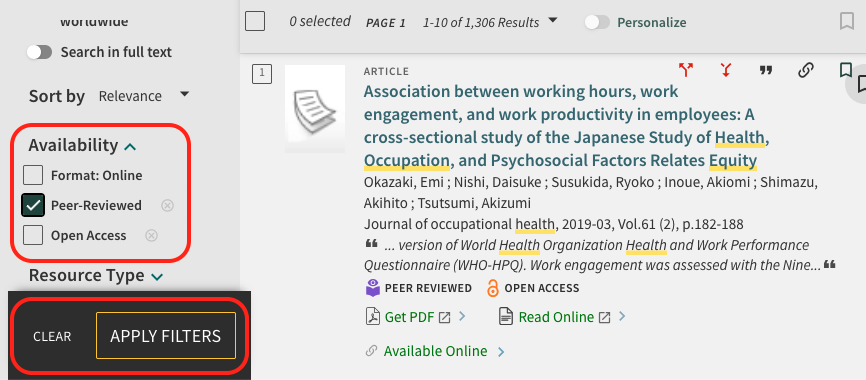
- If you need scholarly or peer-reviewed articles, also select the Peer-reviewed filter under Availability.
- Please note that there are two ways to apply filters, by clicking on the button/toggle OR by checking the box on the left and applying the filter.