TeachingBooks.net
Steps to use TeachingBooks.net beginning from the University Libraries homepage.
Accessing TeachingBooks.Net
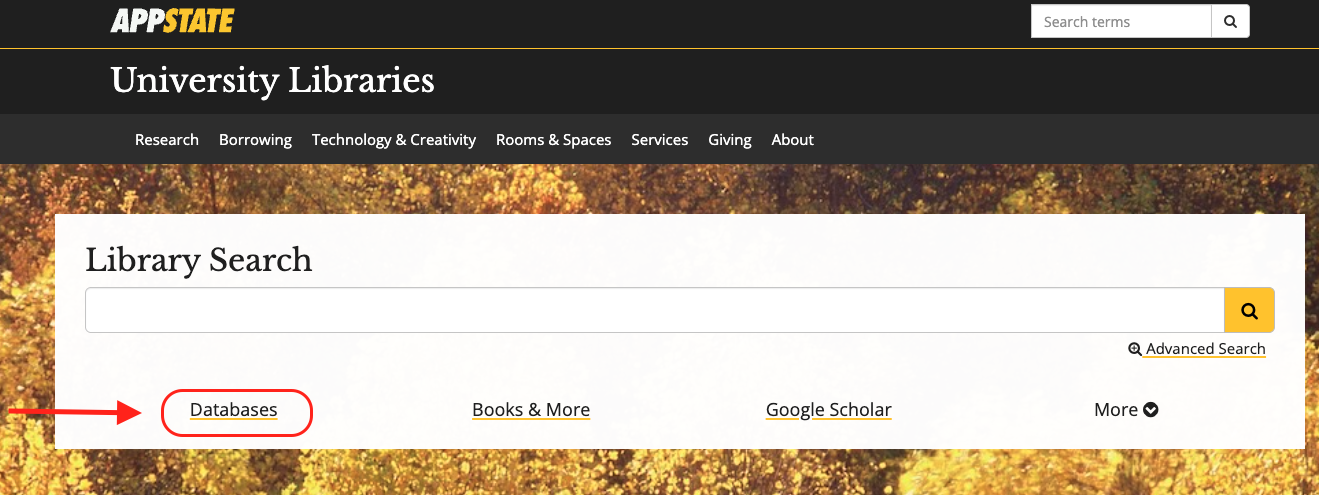
- From the University Libraries homepage, click on Databases
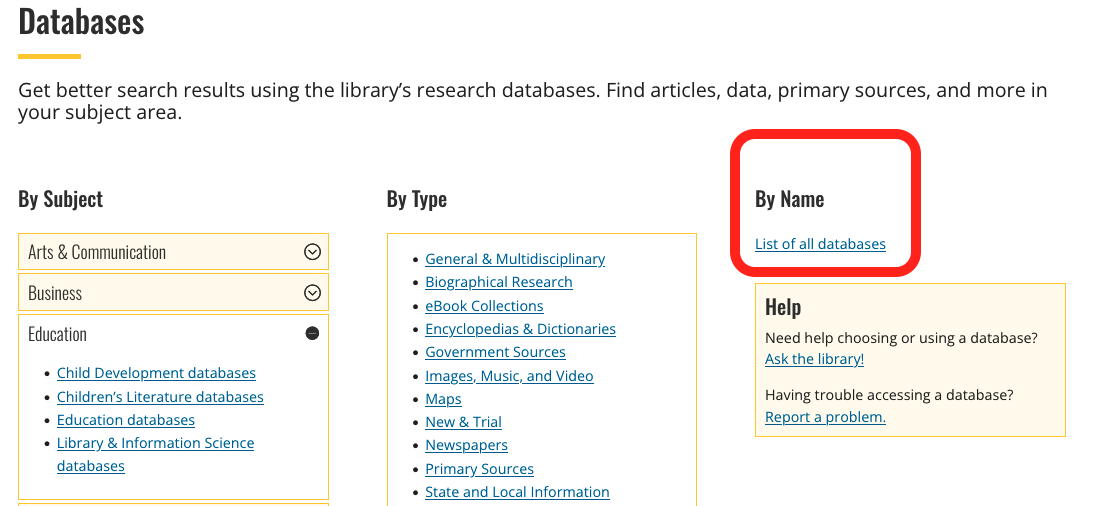
- Click on ‘By Name’ to search by name
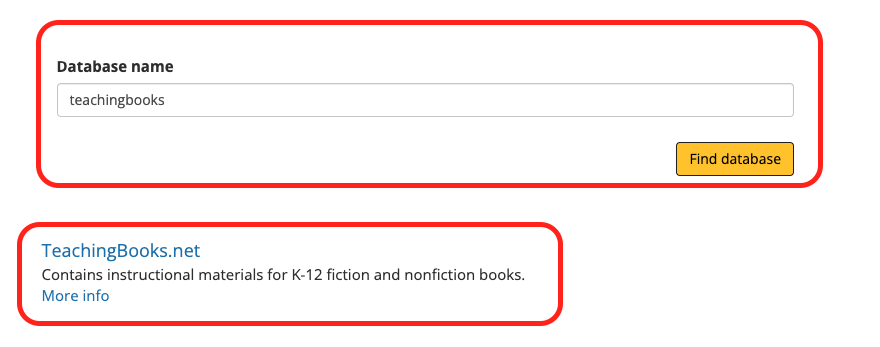
- Enter “TeachingBooks” in the database search box, and click the ‘Find databases’ button
- Click TeachingBooks.net
- You might need to login with your App State credentials
How to Search
- From the homepage you can search for resources about authors, illustrators or books by using the search box on the top of the screen.
- Start by entering an author, illustrator or book title into the search box and results will appear below as you type
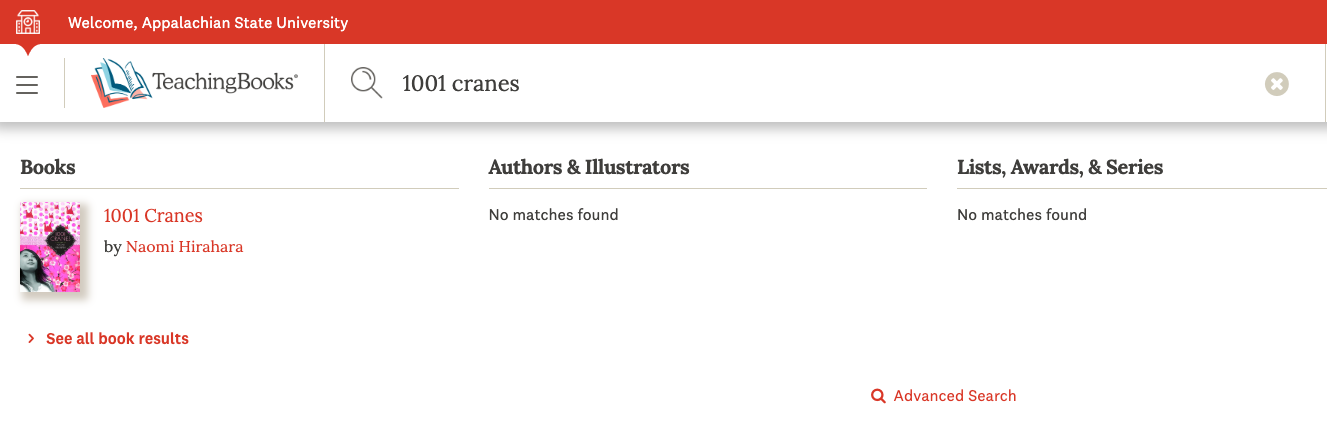
Search Results
Click on the page you are interested in and you will find a menu of resources that can be expanded by clicking the plus buttons on the right side of the screen.
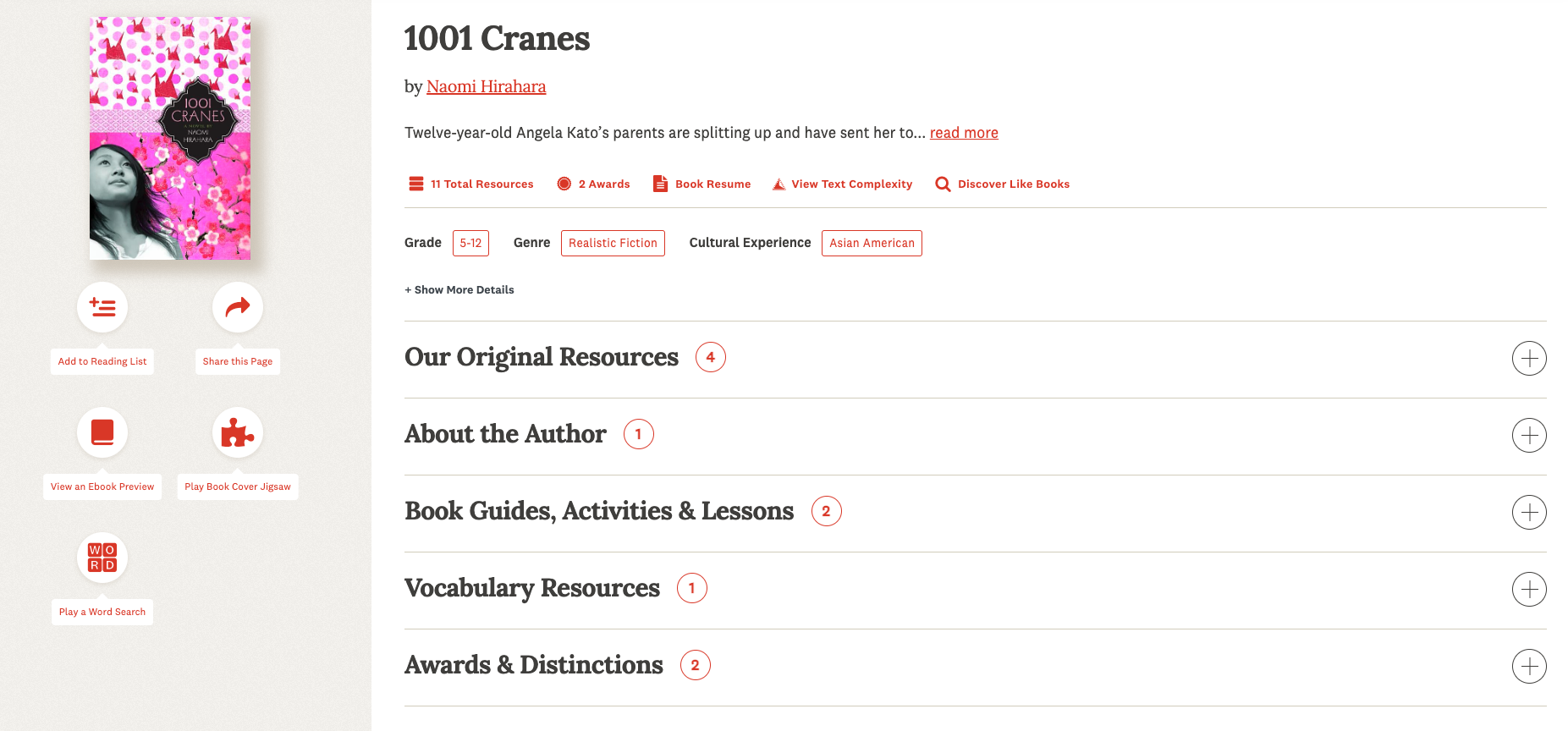
Depending on your search, you might see the following categories:
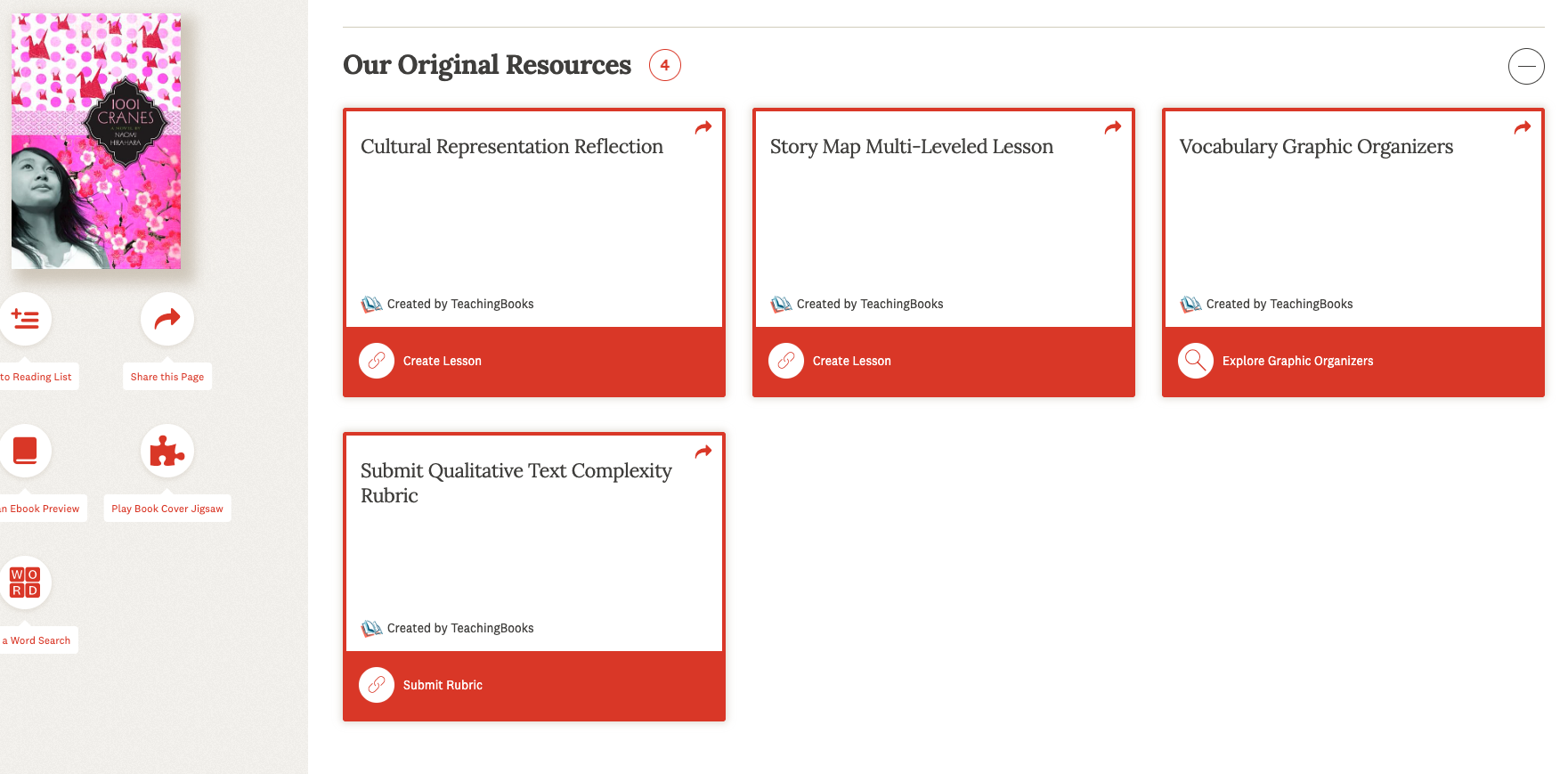
- Our Original Resources, which provides original resources created by TeachingBooks (screenshot 1)
- Book Guides, Activities & Lessons
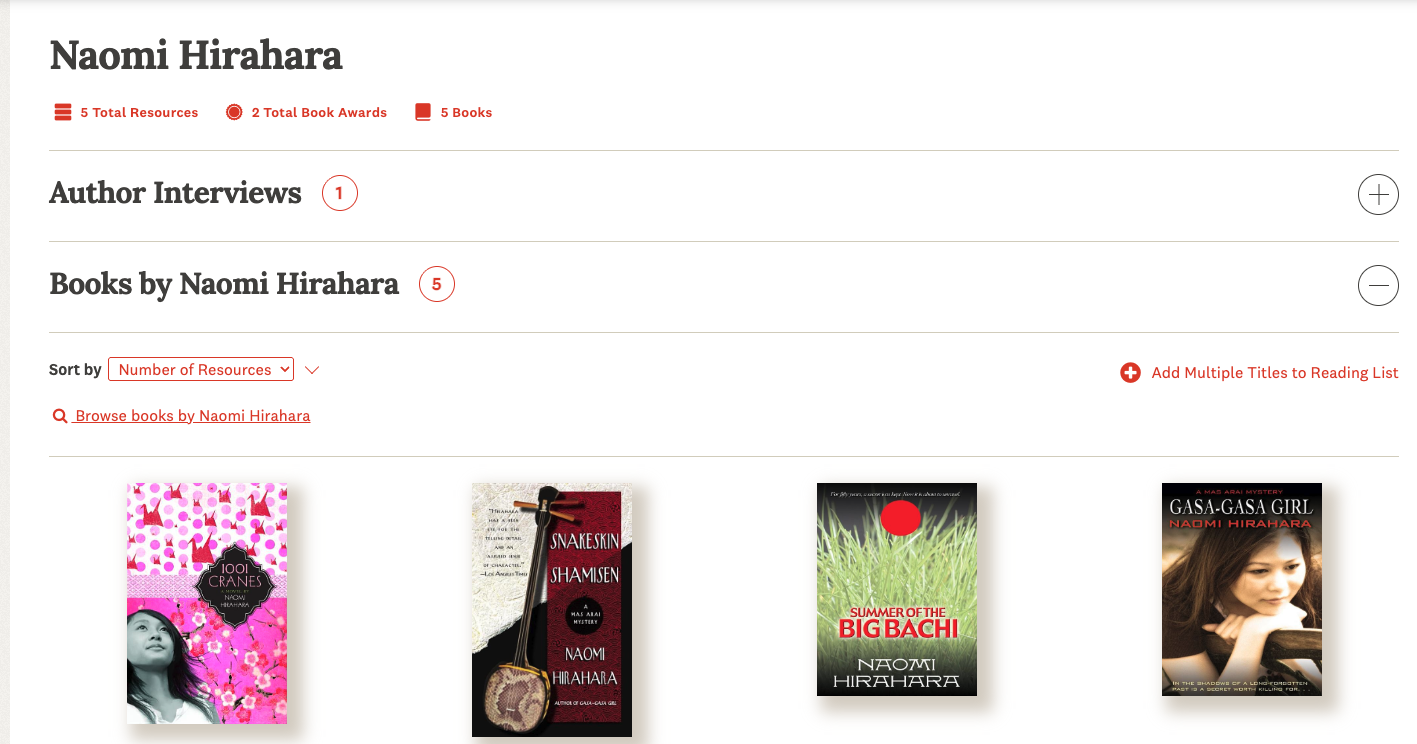
- About the Author, which can link to an author page and author interviews (screenshot 2)
- Vocabulary Resources
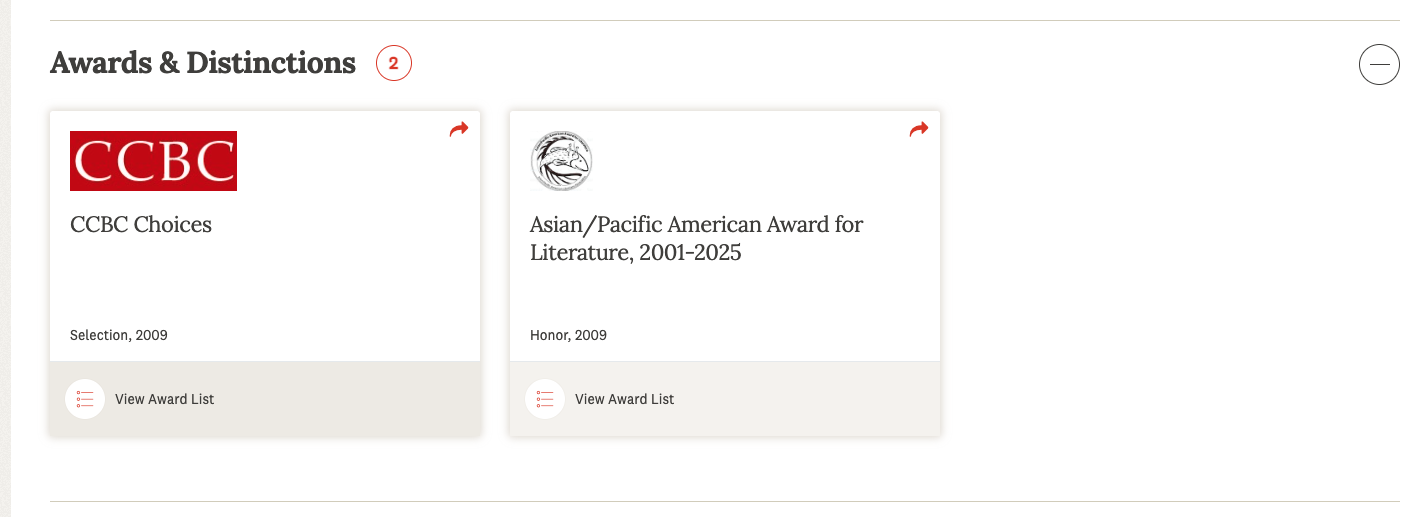
- Awards & Distinctions (screenshot 3)
- Author Interviews
- Books by Author
How to Browse
Another way to find resources is with the website’s browse function.
- From any page, click browse on the top of the screen
- From the menu on the left of the screen you can browse books by specific collections
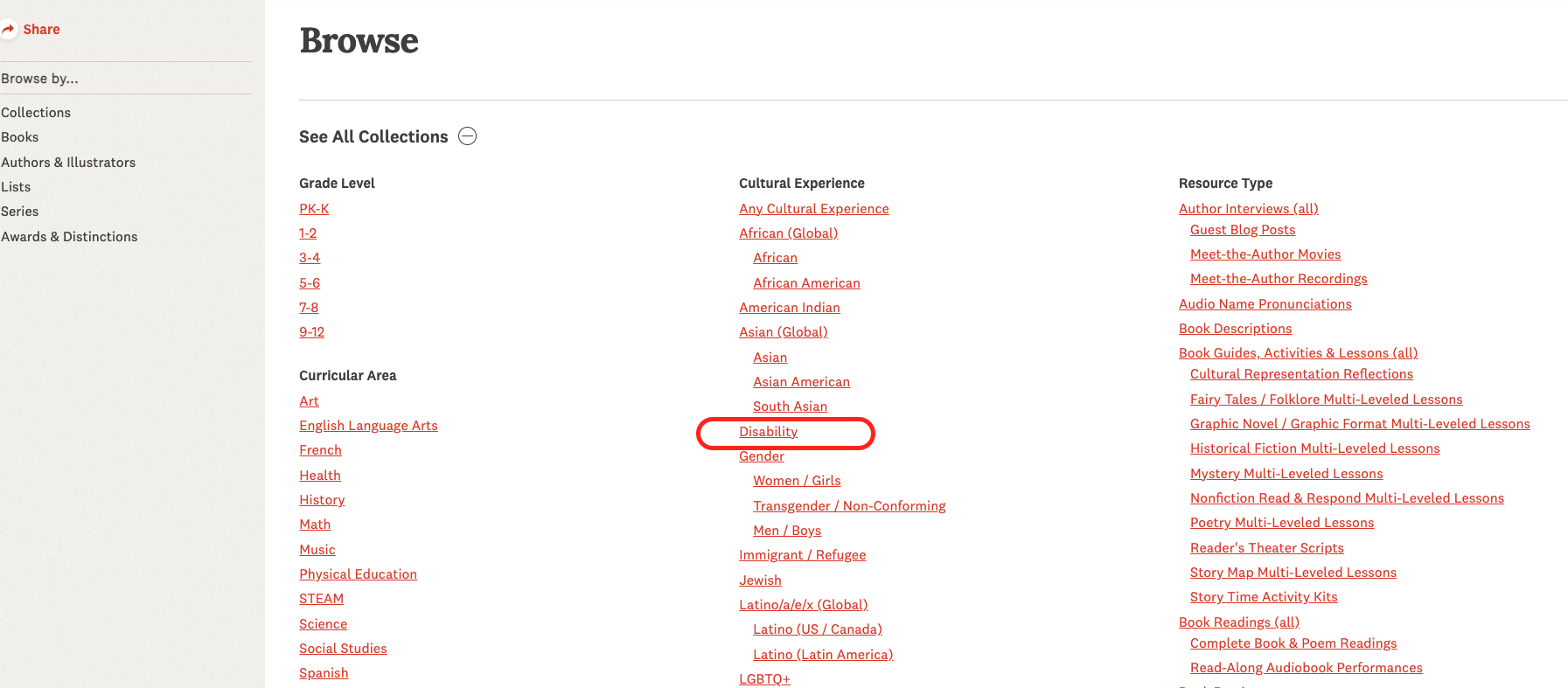
- For example, to browse for books that feature disability as a cultural experience, click on that collection under the cultural experience category
- You can then narrow your search using the options on the left menu